Create, approve and send WhatsApp templates without leaving Wazapi
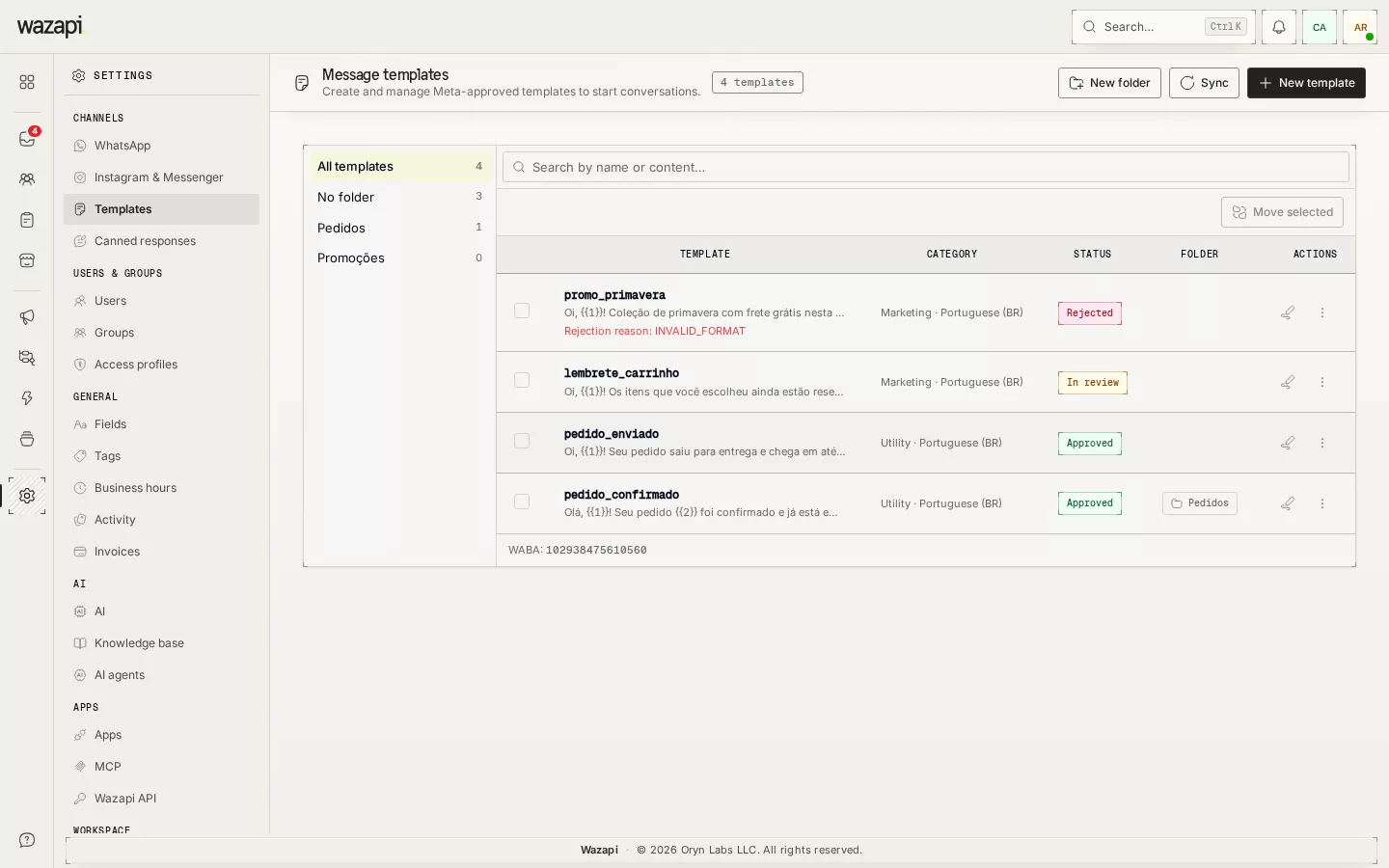
Build the template with a preview in WhatsApp format, submit it for Meta review in one click and follow its status. Once approved, it is ready for the inbox, flows and API.
The 24-hour window has closed
On the official WhatsApp API, a business can only send free-form messages up to 24 hours after the customer’s last message. After that, only a Meta-approved template will do, and any detail outside the rules means rejection.
In Wazapi, the template is created, checked and submitted for approval on one page, and its status comes back on its own when Meta answers.
From draft to send
Write the template
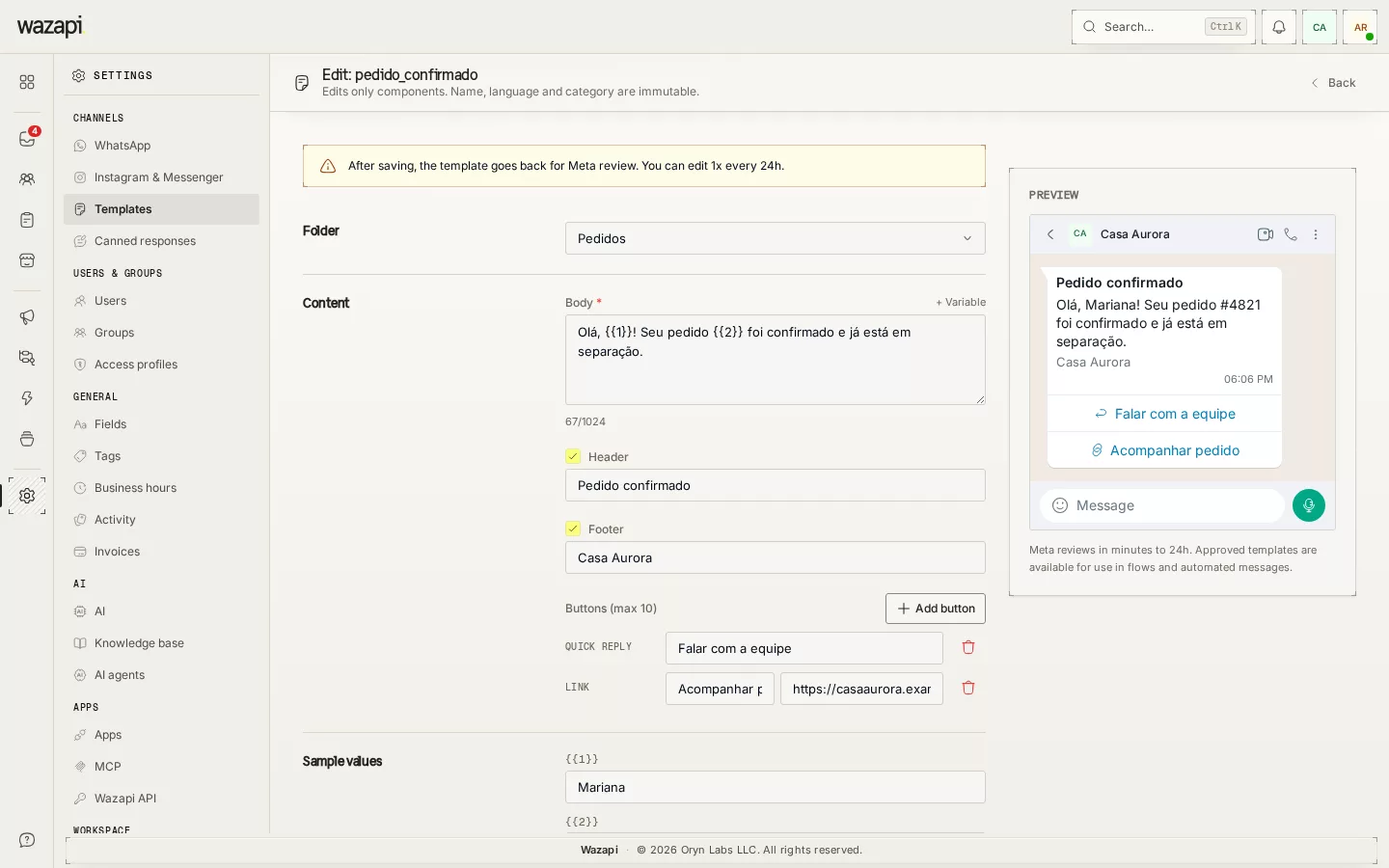
In Settings → Channels → Templates, pick the category and language and write the body with variables, a text header, a footer and buttons.
Check the preview
The preview shows the message as it will look on WhatsApp, with the sample values. If a variable sits at the start or end of the text, out of order or next to another, the page shows where before you submit.
Submit for review
The template goes to Meta in one click. Its status changes on its own to approved or rejected, with the rejection reason when there is one.
Use it with customers
Once approved, send it from the inbox when the window closes, through the Template block in flows, through the API or through MCP.
What you can do
Utility and marketing
Utility templates, such as confirmations and notices, and marketing templates, such as promotions, in Portuguese, English and Spanish.
Buttons
Up to 10 buttons: quick replies, links, phone and, on marketing templates, copy a coupon code.
Status always up to date
Approvals, rejections, pauses and category changes made by Meta arrive on their own, and the Sync button brings in templates created directly in WhatsApp Manager.
Folders and search
Organize templates in folders and find any of them by name or by a piece of the text.
Send protection
Before sending, Wazapi checks whether the contact is blocked, has opted out or already got the same template in the last 24 hours, and enforces per-contact limits on marketing templates.
Media and coupons through the API
Through the API, a send fills in the template’s media header, links with variables and coupon code.
What it looks like in Wazapi
Who it is for
- Companies that need to reach customers again after the 24 hours.
- Anyone sending confirmations, reminders and order notices over WhatsApp.
- Teams that have had templates rejected and want to get them right before submitting.
Frequently asked questions
How long does Meta take to approve?
Meta decides, and the time varies. Wazapi receives the answer as soon as it comes out and updates the status in the list, with the reason when the template is rejected.
Can I edit an approved template?
Yes. The edit goes back to Meta review, and Meta allows editing the same template once every 24 hours.
Can I create a template with an image, or an authentication template?
Not from the form yet: today it takes a text or location header, in the utility and marketing categories. Media templates created in WhatsApp Manager come in through Sync and can be sent through the API.
Can I send a template to a list of contacts?
Bulk sending through campaigns is not released yet. Today templates go out one at a time: from the inbox, flows, the API or MCP.
Who pays for template messages?
Meta charges for each delivered template, priced by category. That cost is Meta’s and shows up in your dashboard by category.
Want to see it working for your business?
Free 14-day trial, no credit card required.