WhatsApp knows when your team is working
Set a schedule for each team, with breaks, night shifts, holidays and special dates, and use it in your flow to take one path inside business hours and another outside them, with the right message about when you are back.
After-hours messages nobody answers
A customer writes on Sunday night, or on a holiday, and waits without knowing whether anyone will read it. On Monday your team finds a full queue and the customer has already gone elsewhere.
With business hours, the flow knows whether your team is working: inside hours it hands the conversation to someone; outside them it says when you are back and collects what is needed.
How to set it up
Create the schedules
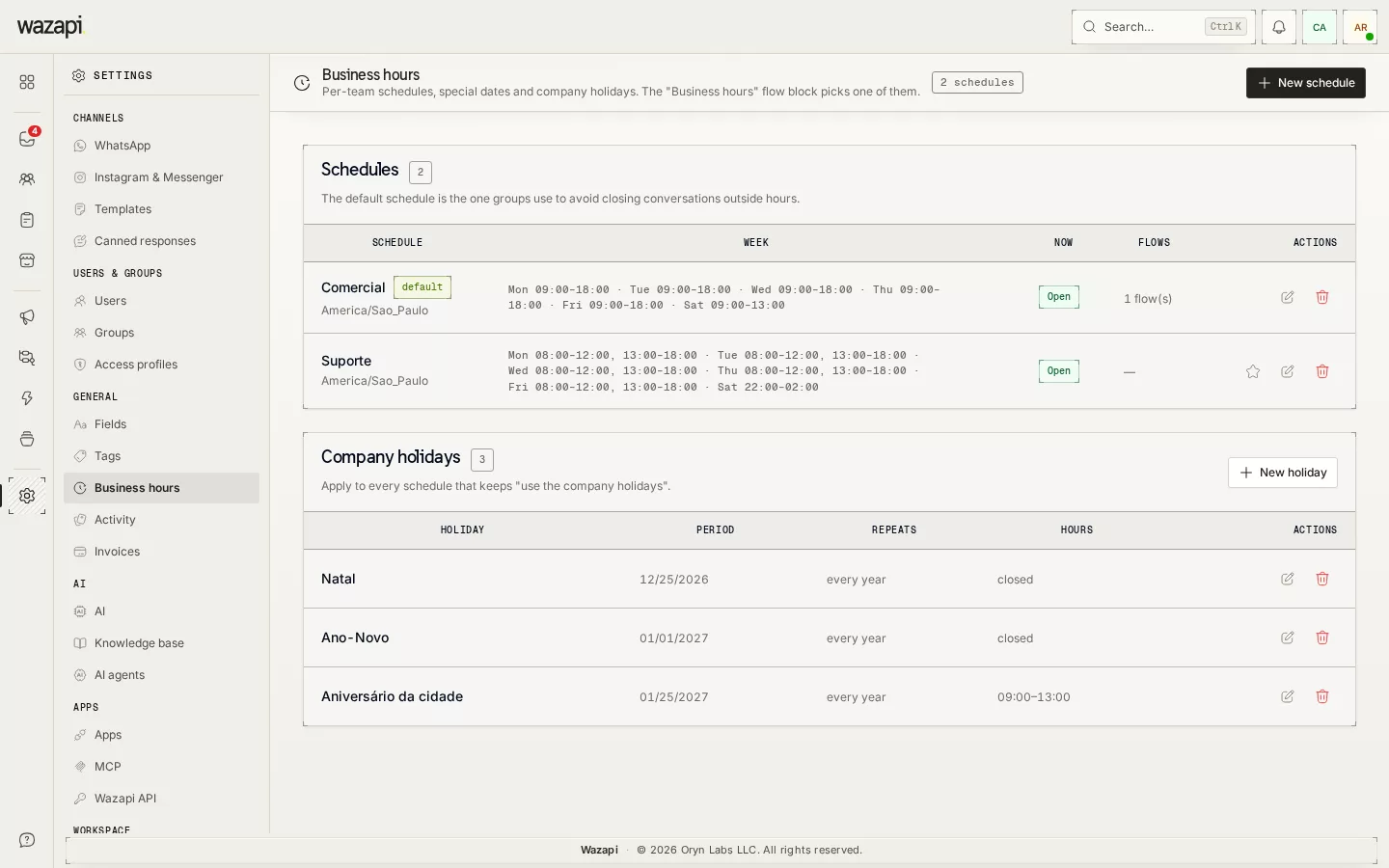
In Settings → General → Business hours, create a schedule for each team, such as Sales or Support, with the time zone and the intervals for each weekday.
Add holidays and special dates
Enter your company holidays once and use them in every schedule, or mark special dates for one schedule, such as a year-end break or a Saturday with shorter hours.
Use it in the flow
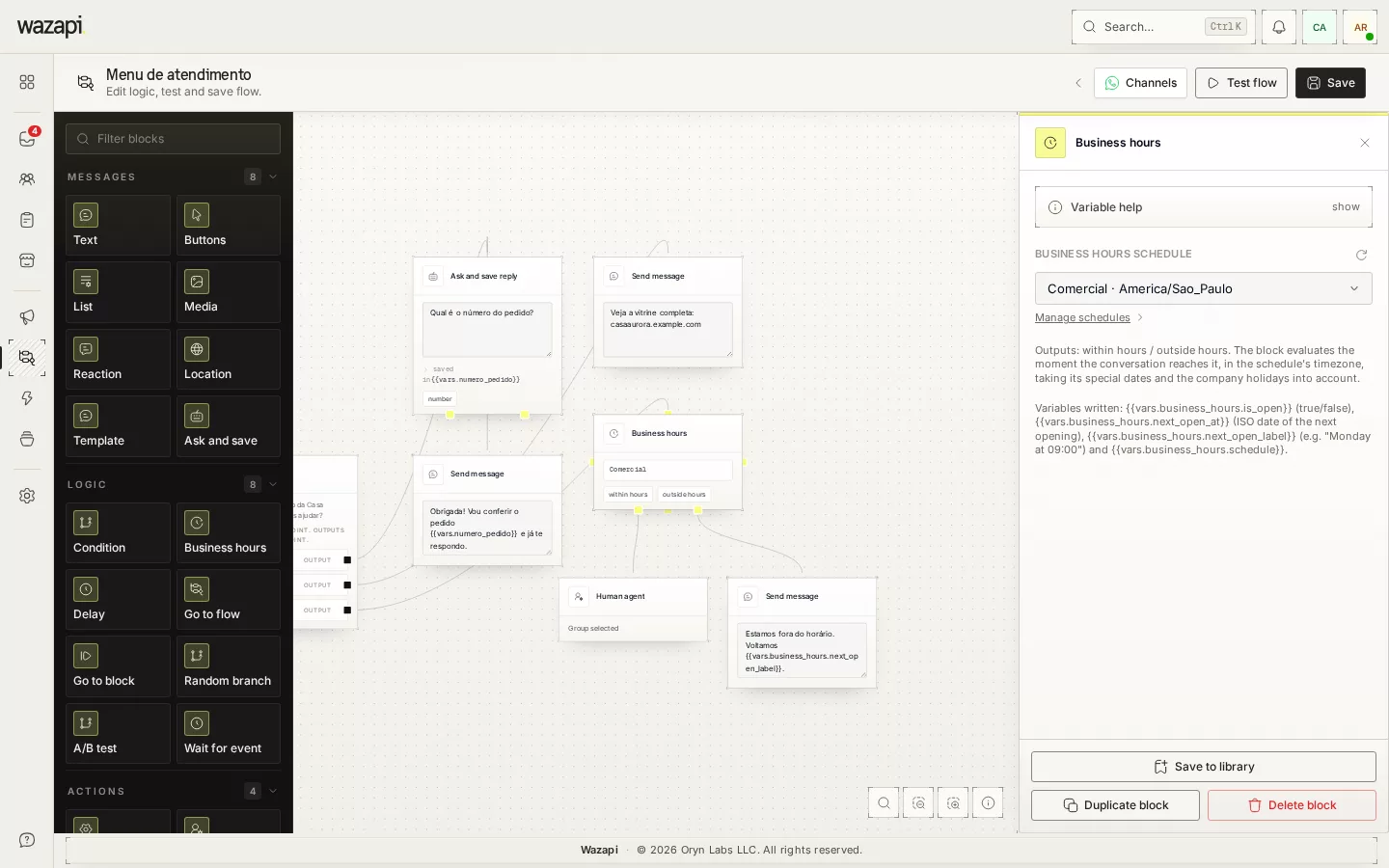
Add the Business hours block to your flow and connect both exits: inside hours and outside hours.
Test another day and time
In the flow simulator, use Simulate at to see what happens on a Sunday or a holiday, without waiting for that day.
What you can set
One schedule per team
Sales, Support and Billing can have different hours, each in its own time zone. One of them is the company default.
Breaks and night shifts
Up to 6 intervals per day, such as 08:00–12:00 and 13:00–18:00, and intervals that run overnight, such as a 22:00 to 02:00 shift.
Holidays and special dates
Company holidays shared by every schedule, and special dates per schedule: a day or a period, closed or with its own hours, repeating every year if you want.
When you are back
Outside business hours, the message can state the next opening time, such as “Monday at 09:00”, worked out from the schedule and the holidays.
No rush to auto-close
In groups, the option not to close outside business hours waits for the next opening to close an idle conversation, instead of closing it in the middle of the night.
Open now on your Store
When your plan includes the Store, your Store page can show whether the company is open right now, based on the default schedule.
What it looks like in Wazapi
Who it is for
- Companies that get messages at night, on weekends and on holidays.
- Teams with different hours, such as sales until 8 pm and support until 6 pm.
- Operations with night shifts, lunch breaks or shorter hours on Saturdays.
Frequently asked questions
Does WhatsApp reply on its own after hours?
The after-hours reply comes from a flow: the Business hours block picks the path, and you decide the message. Without a flow, the inbox sends no automatic reply.
Are national holidays already included?
No. You enter your company holidays once, marking the ones that repeat every year, and they apply to every schedule that uses the list.
One team works on holidays. What now?
Untick “Use the company holidays” on that team’s schedule. The other schedules still close on holidays.
What happens if I delete a schedule that is in use?
The page tells you how many flows use it. Once deleted, those flows take the outside-hours exit until you pick another schedule.
Do agents stop receiving conversations outside business hours?
Schedules apply to the company and to flows, not to each agent. Automatic distribution looks at who is online, not at the schedule.
Want to see it working for your business?
Free 14-day trial, no credit card required.