Build your WhatsApp chatbot by dragging blocks
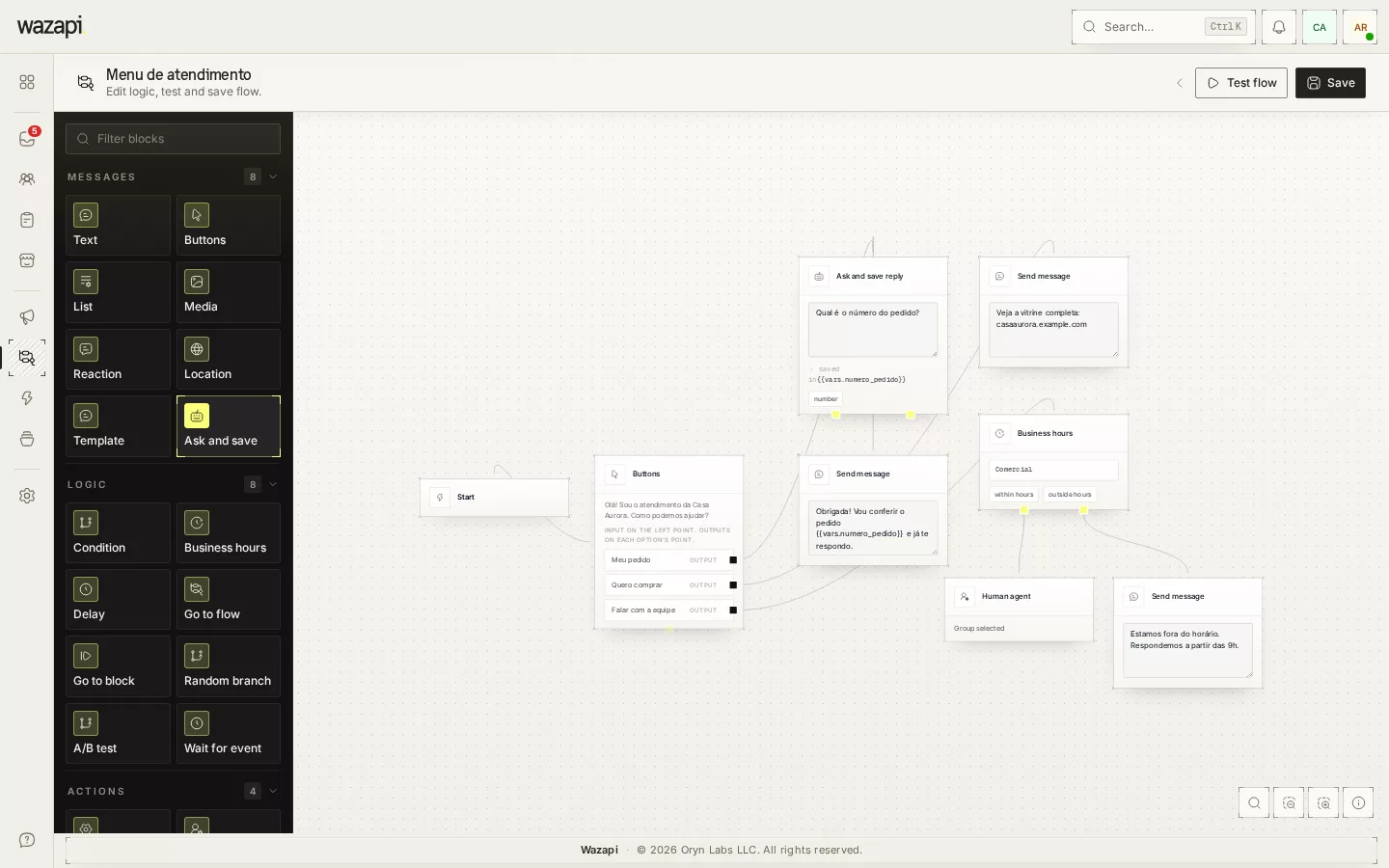
Design your automated service in a visual editor: messages, buttons, questions that validate the answer, business hours, integrations with your system and the right moment to hand off to your team. Test it in the simulator before turning it on.
The same questions, all day long
Opening hours, address, invoice copy, order status: many conversations start the same way and keep your team busy with answers that never change. After hours, customers get no answer at all.
With a flow, WhatsApp answers right away, collects the right details and hands the conversation over already organized to whoever takes it.
From draft to live
Create the flow
In Flows, create a new flow. It starts as a draft, and you drag blocks from the palette onto the canvas and connect them.
Test in the simulator
Click Test flow and chat with the bot right on the screen, without WhatsApp and without saving anything. You can simulate another day and time to see what happens after hours.
Choose how it starts
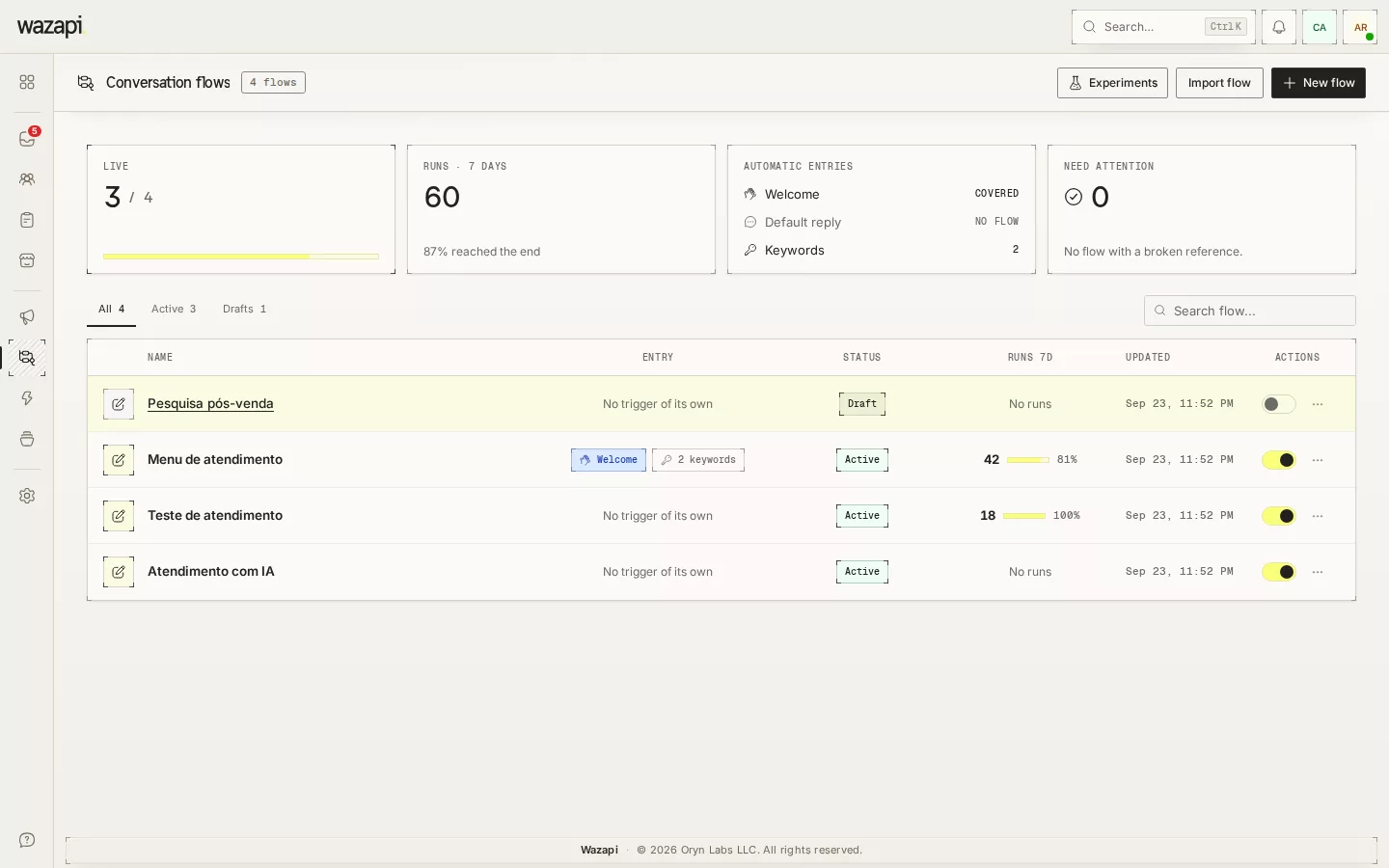
Set keywords (exact, starts with or contains), use the flow as the welcome for new conversations or as the default reply, or trigger it through the API and MCP.
Turn it on and follow up
Activate the flow and see in the list how many runs it had in the last 7 days, how many finished and how many failed.
What you can build
Messages customers can tap
Text, buttons (up to 3), lists (up to 10 options), media, location, reactions and approved templates. Each button opens a different path in the flow.
Questions that validate the answer
The Ask and save block checks that the answer is an email, phone, CPF, CNPJ, CEP, date or number before moving on, and asks again when it is not.
Business hours
Split the path for inside and outside business hours based on your company’s schedules, with exceptions and holidays.
Integration with your system
The HTTP request block calls your API, stores parts of the response in variables and follows different paths depending on the result.
Actions on the contact and the CRM
Add tags and fill contact and conversation fields straight from the flow. When your plan includes the CRM, the flow also creates opportunities and moves stages.
Handoff to your team
The human agent block hands the conversation to a group or a person. While someone from your team is in the conversation, the bot does not reply.
What it looks like in Wazapi
Who it is for
- Companies that answer the same questions many times a day.
- Anyone who wants to serve customers after hours without leaving them unanswered.
- Teams that want to receive conversations with the name, order and reason for contact already filled in.
Frequently asked questions
Do I need to know how to code?
No. You build the flow by dragging blocks and connecting them. Only the HTTP request block needs knowledge of the API you want to call.
Can I test before going live?
Yes. The simulator runs the real flow on screen, without sending anything over WhatsApp and without saving anything, and lets you pick the day and time of the simulation.
What happens to people midway through the flow when I edit it?
Anyone already in the flow finishes on the version they started. New conversations follow the saved version.
Does the flow work on Instagram and Messenger?
Yes, with the blocks those channels support. Templates and lists are WhatsApp-only, and location becomes a Google Maps link.
Can I use AI inside the flow?
Yes. The AI Agent block chats with the customer using your knowledge base and returns to the flow when it hands off, finishes or gets no reply. It depends on your plan and your own OpenAI key.
Want to see it working for your business?
Free 14-day trial, no credit card required.